
To start working with the Touristdoc platform you have to register in our system so that you can make use of our marketplace. With the following steps we will guide you through our onboarding process.
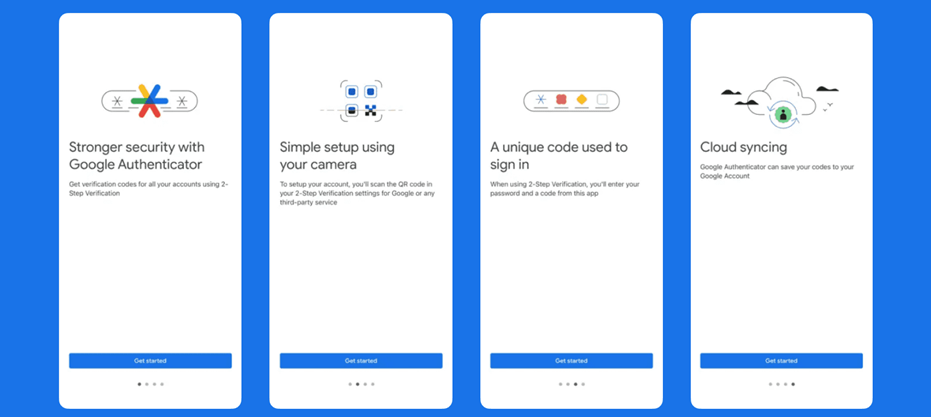
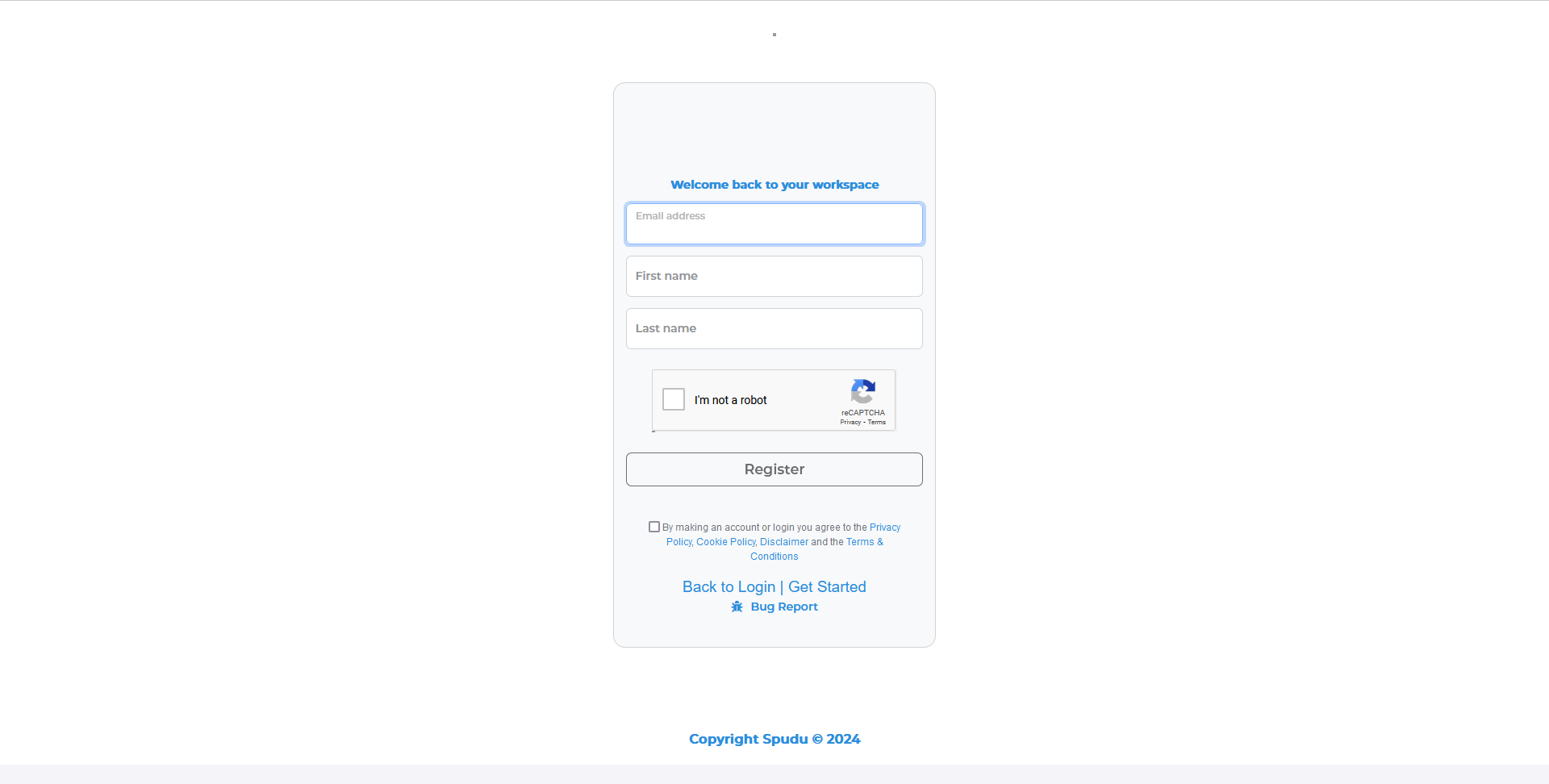
Once you've installed the Google Authenticator app, you can register on our backoffice platform using the following link: https://workspace.spudu.com/register?alias=touristdoc.
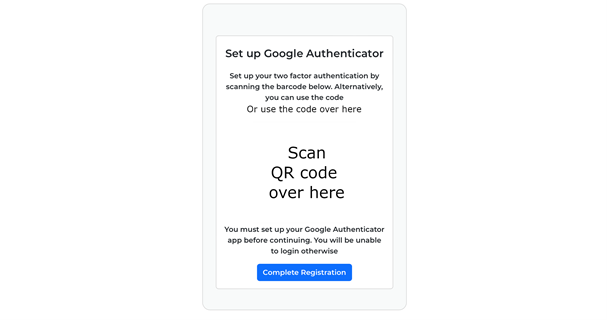
Scan the QR code with the Google authenticator app to enable future logins. This QR code will be your code to login in the system instead of using passwords.

After clicking on complete registration you will get an email with a button to login to the Touristdoc dashboard.
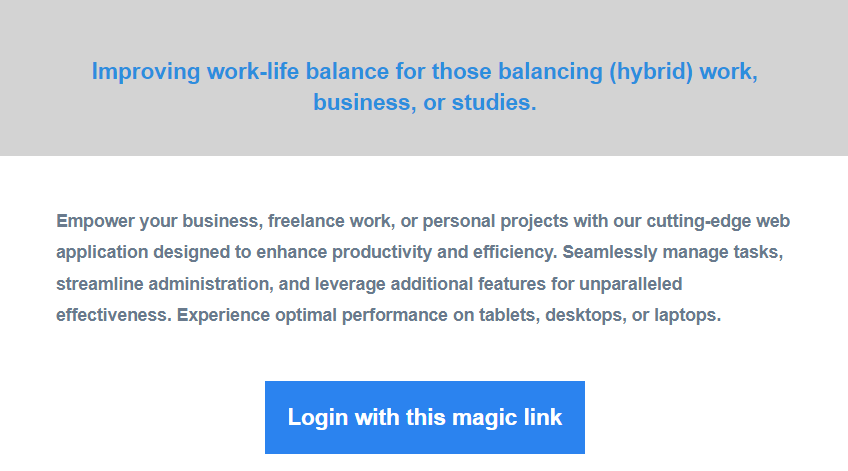
Click on the email button to login the Touristdoc dashboard and look in your spam folder if you didn’t received the email.
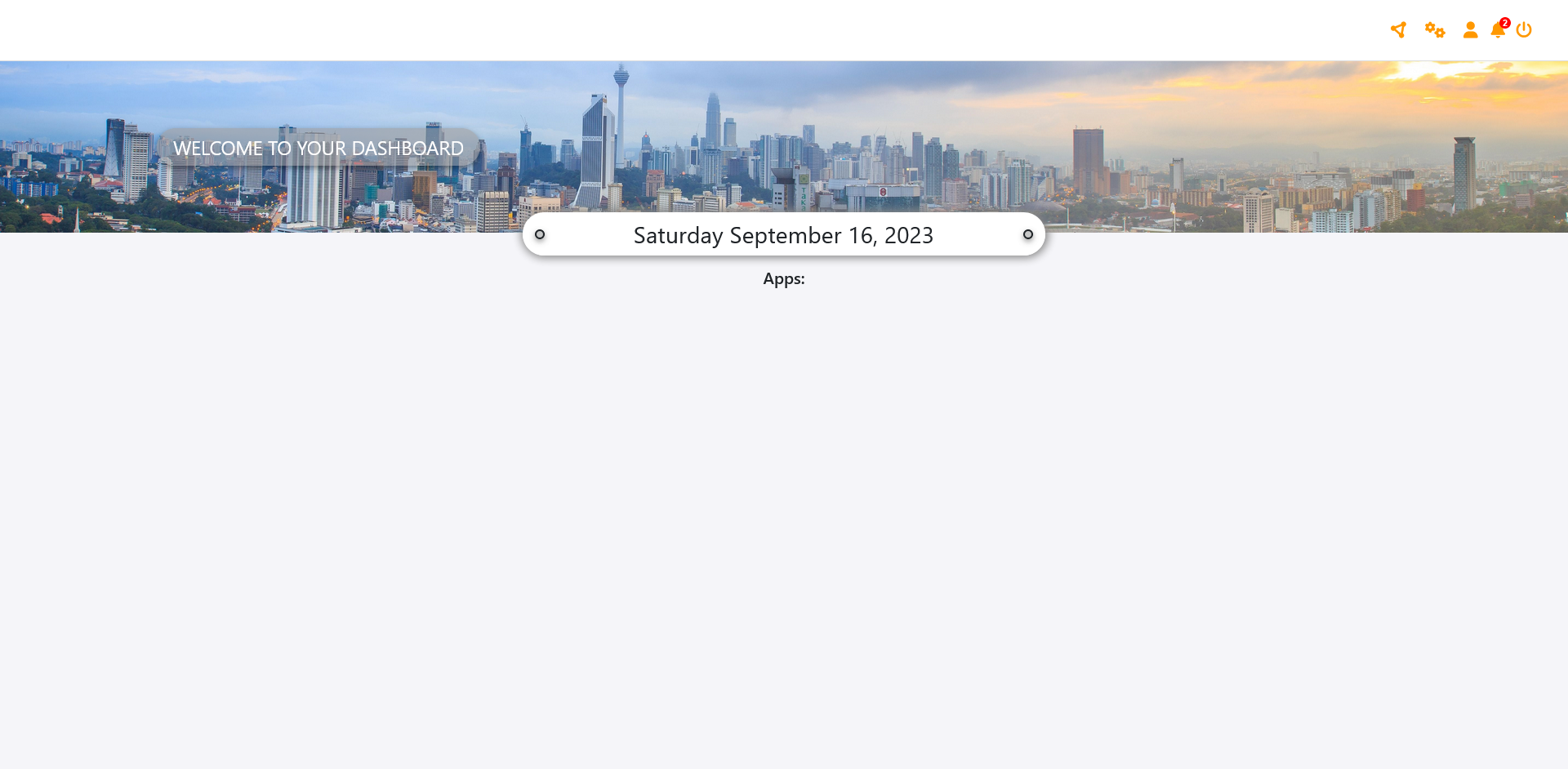
Upon logging in, the dashboard appears empty. Go to the app section to add apps and receive app invitations. Click the bell next to the user icon in the upper right to accept app requests and populate the dashboard.
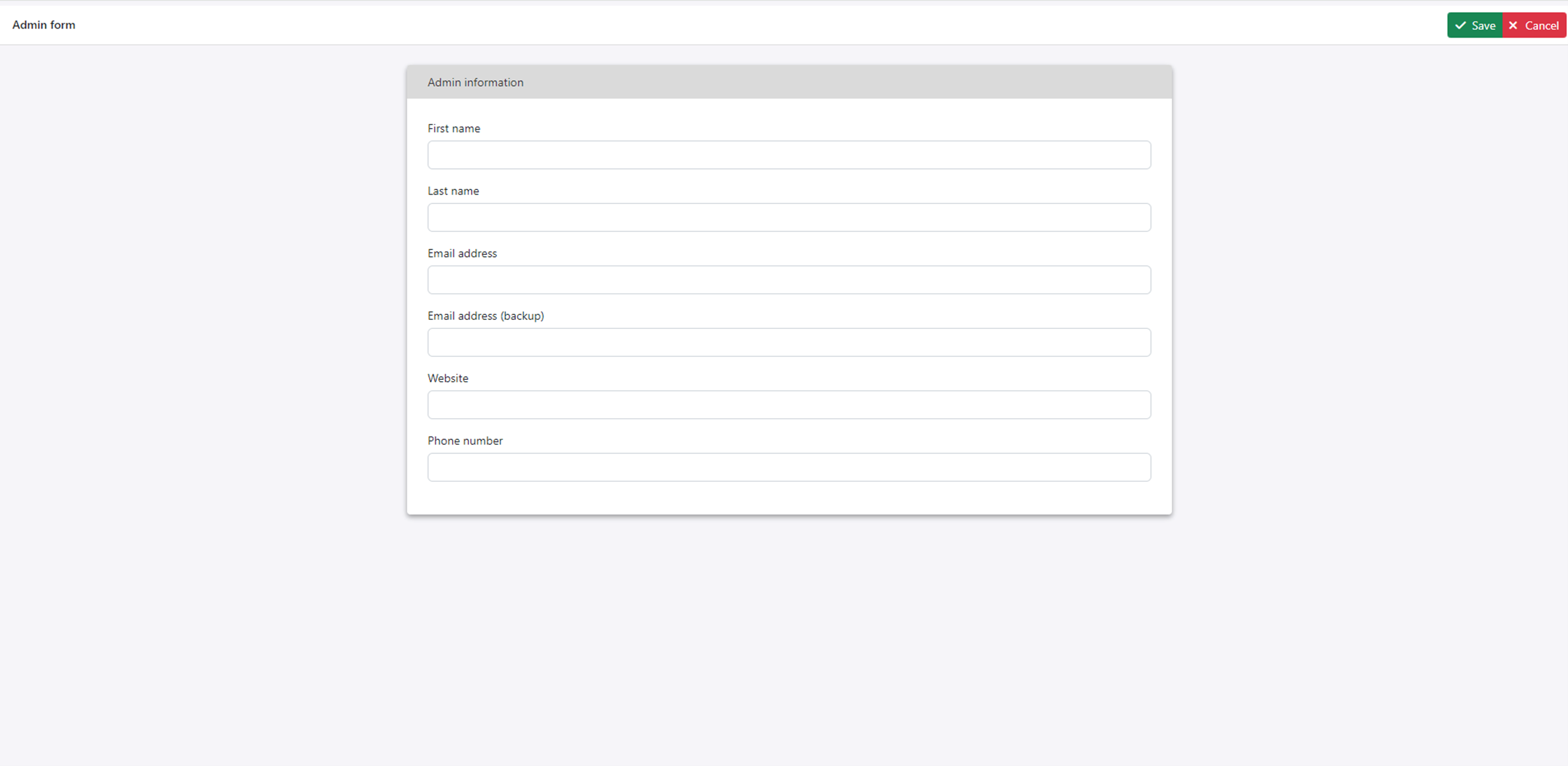
To optimize the use of our platform, complete your admin profile by clicking the user icon in the upper right. Add your phone number, city, languages, expertises and available hours. This enable users to work together with you and depending of your role to book appointments with you.
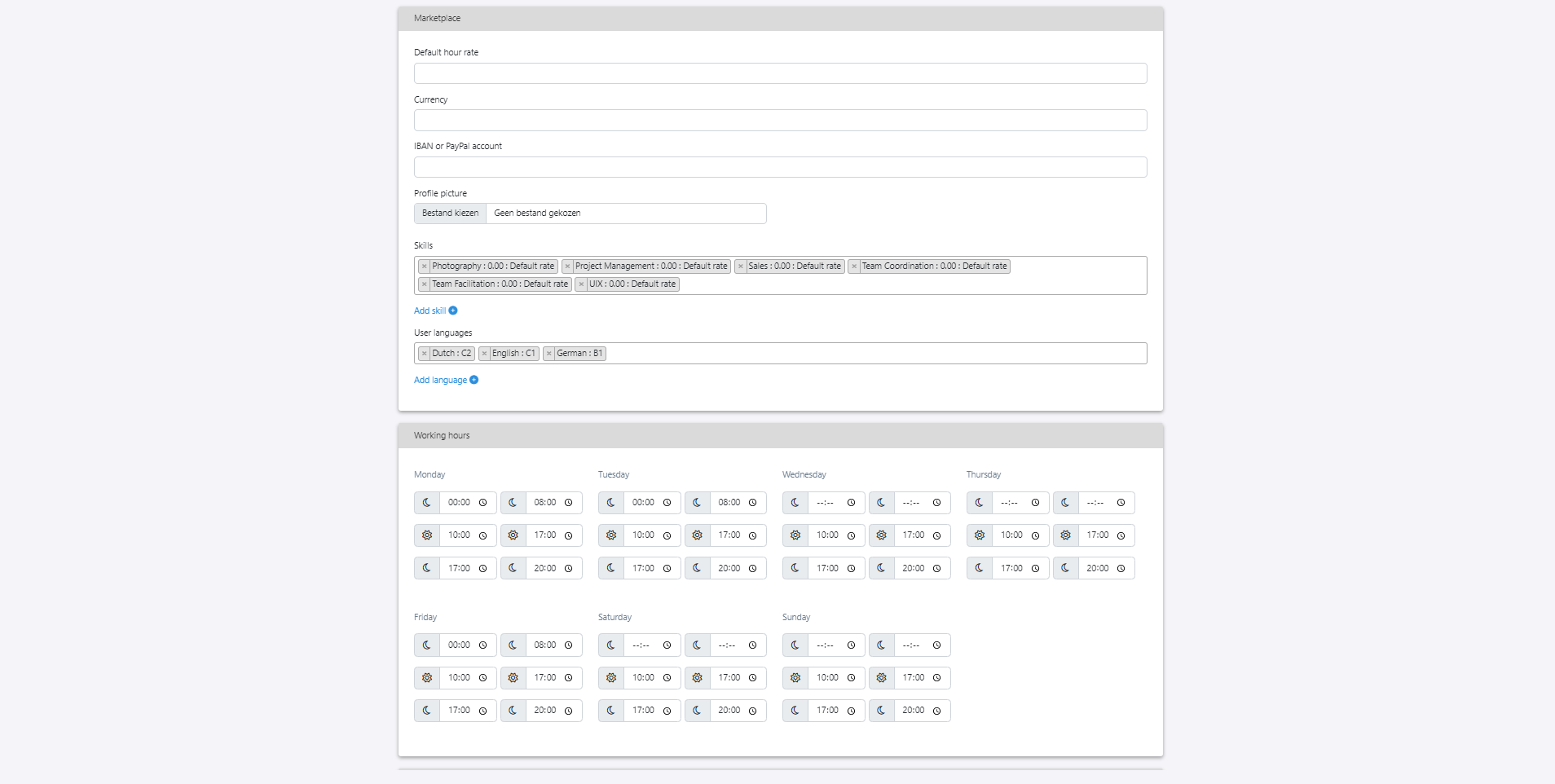
In Touristdoc, your profile is versatile; it's showcased in a marketplace where you set your skills, languages, avalaibility and many more. Customize your availibility or other information with ease, ensuring flexibility for each day.
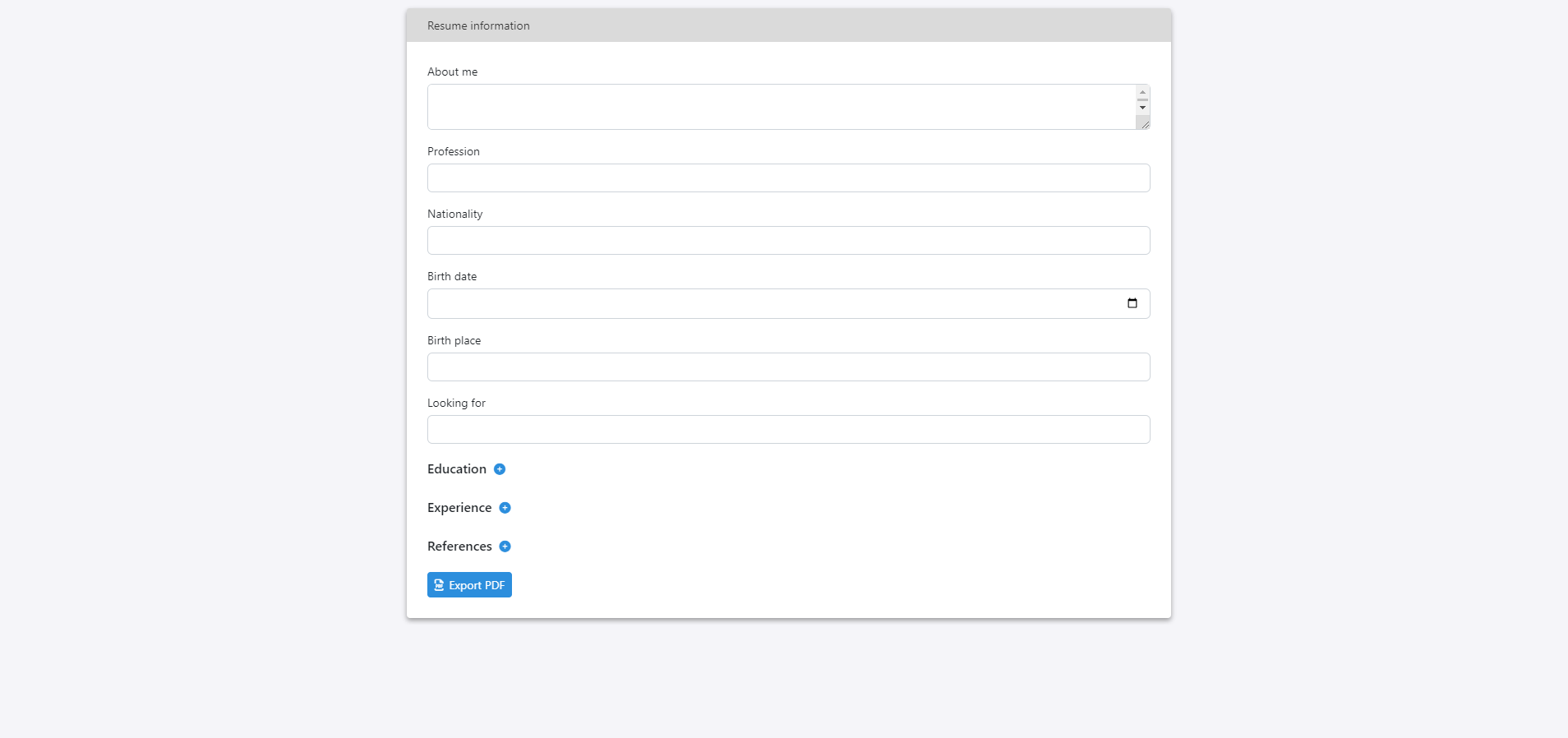
If you want you can use your admin profile data to create an automated resume for export. Add details to your profile for a resume usable in the marketplace or personally.
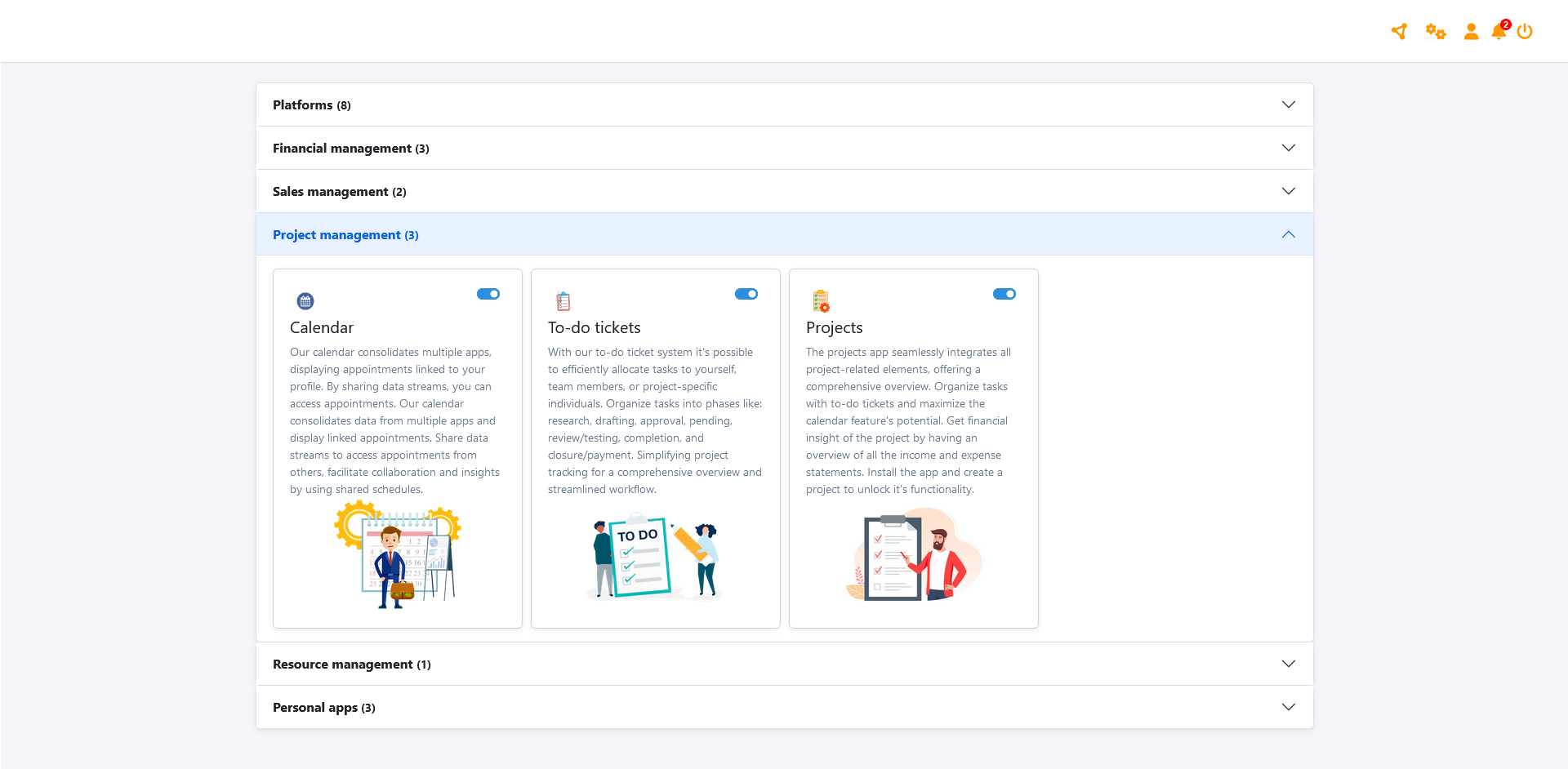
Your dashboard begins empty, but you can populate it by adding apps through the dedicated apps page. Once added, you'll receive an invitation, and the app will seamlessly integrate into your dashboard.
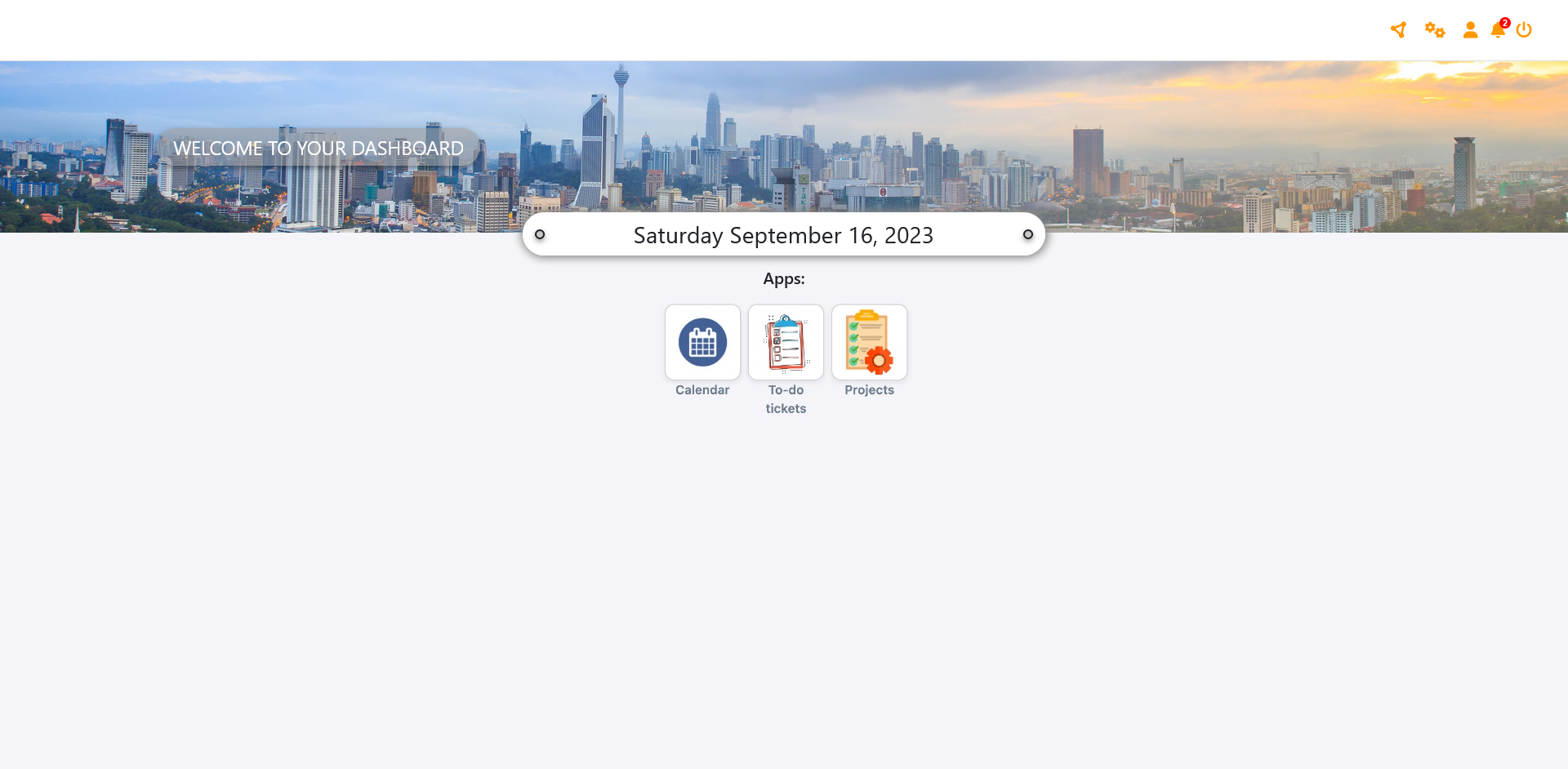
Your dashboard is now filled with apps ready for use within our platform.
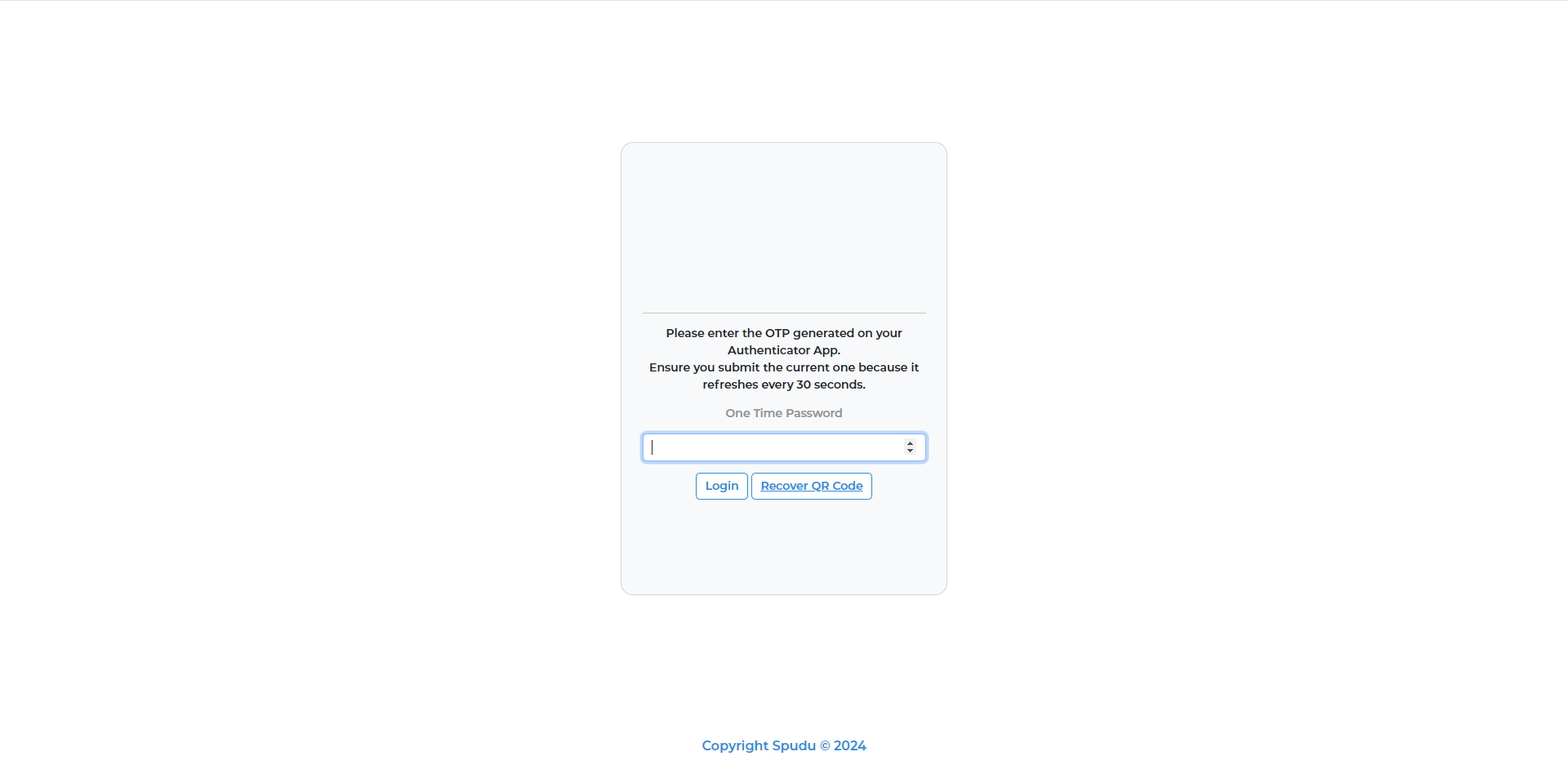
Next time you log in at https://workspace.spudu.com/login?alias=touristdoc, enter your email to receive a login email. Then, enter the code from the Google Authenticator app for added security.

Welcome to Touristdoc! Join our marketplace so we or their clients/guests that become patients can find, book and work with you. Handling invoices that can be sent to their clients/guests that become patients and generating invoices from you to us for payment. Our fee is a set percentage that ensures transparency. Log in at https://workspace.spudu.com/login?alias=touristdoc.